
 Loris Comba

At a glance: Braus is an AI that shows you how to use an app while you are in it. On a Mac with Apple silicon, hold Option and Command in the app you need help with, say what you want and let go. Braus looks at that app and answers out loud. It can tell you what is on the screen, draw boxes around what you asked for, walk you through the steps one at a time while it draws each one, or do the job for you with its own cursor. Your pointer and keyboard are never used. Escape stops it at any time. This guide covers setup, the gesture step by step, what to ask, and what to check when nothing happens.
You know what you want from the app. You do not always know where the control lives, and the usual way to find out is to leave the app, search, read a forum thread and come back. The Super Worker removes that trip: you ask in the app, out loud, and the answer appears on top of the thing you are looking at.
What you need before you start
The Super Worker is part of the Braus app. It needs a Mac with Apple silicon, and Braus needs macOS 15 or later. On other Macs, Braus works as before, with workers doing their jobs in the background.
Download Braus from the download page, or update it with Check for Updates… in the Braus app menu. Then allow the permissions. To hear you, Braus needs Microphone, Speech Recognition and Input Monitoring. To read and work in your apps, it needs Accessibility and Screen Recording. All of them are listed in Settings › Computer › This Mac › Permissions, and the permissions docs explain each one.
Last, the model. The Super Worker uses the model you connected, like any worker. To look at a picture of your screen, that model needs to read images: Claude and ChatGPT do, and so does Gemini; with OpenRouter or Ollama it depends on the model.
How to talk to Braus, step by step
Step 1: Put the app you need help with in front
Braus looks at the app in front of you, so start there. Hold the keys in that app, not in Braus's own window, or Braus will answer about the wrong thing.
Step 2: Hold Option and Command and wait for the waveform
Press and hold Option and Command (⌥⌘). A small bubble with the worker's portrait and a live waveform follows your pointer. Wait for the waveform before you speak. Pressing any other key while you hold cancels the request, which is useful when you change your mind.
Step 3: Say what you need, then let go
Speak normally and let go to send. Braus answers with a quick word right away, and if the job takes a while, a short line about what it is doing. The microphone is on only while you hold the keys.
Step 4: Point at what you mean, if words are slower
Keep Option and Command held and hold Control. Move the pointer across the area you mean, then let go of Control to fix that box. Do it again for another area, up to 32 per request. Braus looks at what you marked and explains it, so "What does this do?" with a box around an unfamiliar panel is a complete question.
Step 5: Stop it, or let it finish
Press Escape, or say "stop" while you hold the keys. Braus stops at once and clears its marks. A step already done stays done and is never repeated. When the rest of a job no longer needs the app in front of you, Braus carries on in the background, and the result waits in that worker's chat in the Braus app.
What to ask: four kinds of request
| If you want to | Ask something like | What you get |
|---|---|---|
| Understand the screen | "What am I doing in this window?" | An answer out loud, about the window in front of you |
| Find something | In Pro Tools: "Highlight every vocal track." | Boxes drawn around each one, over the app |
| Learn the steps | In Pro Tools: "How do I add a new track?" | Each step said out loud and drawn on screen, one after the other |
| Get it done | "Open Notes and write a shopping list for a pasta dinner for four." | Braus works in the app with its own cursor while your pointer stays still |
It sees. Braus reads the window in front of you. When the answer needs it, it also takes one picture of that window, for that request only. If your model cannot read images, Braus says so and answers from the window's text.
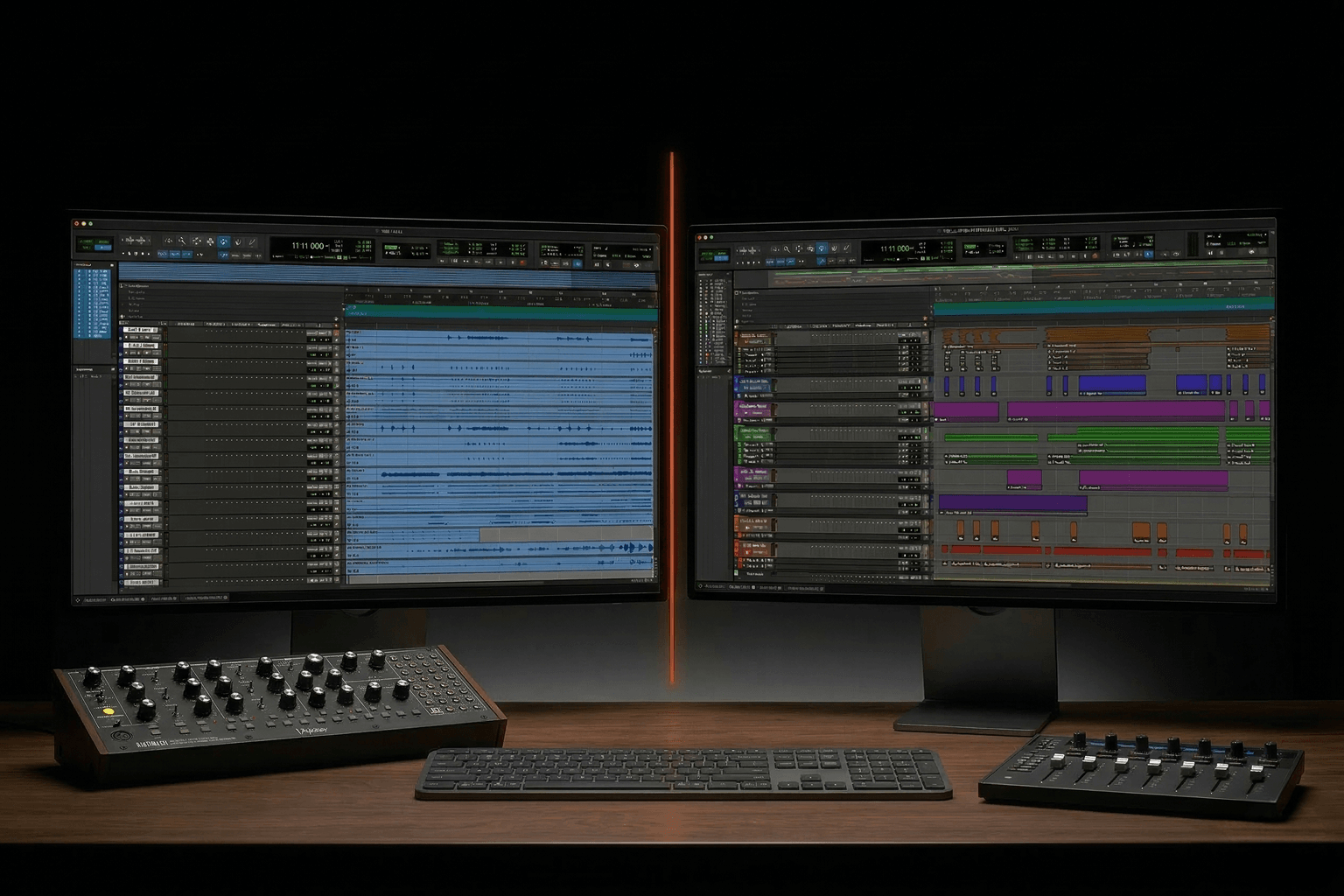
It shows. The boxes are drawn over the app and never catch your clicks. They fade when Braus is done, and Escape clears them at once. This is the fastest way to find a control in a dense window: in a Pro Tools session with sixty tracks, "Highlight every vocal track" answers in boxes instead of a scroll.
It walks you through. Braus plans the steps once, then says each one while it draws its mark, a box, an arrow or a line. You follow along and click yourself, so you learn the app as you go. This is the request to use when you want to know how, not just to have it done.
It does. Braus clicks, types, presses keys and shortcuts, chooses menu items, scrolls and presses buttons in dialogs, one step at a time. You see its graphite cursor glide to each target and a small pulse where it clicks. With Calculator in front, "Calculate 17 times 23 in this Calculator and read its actual result" gets you Braus working the keys and reading back 391. For Pro Tools jobs you want done in a session, the list of what a worker does in Pro Tools covers routing, inserts, sends and the rest.
What Braus can read and do depends on the app and the task. On your screen it does not open web addresses, does not quit or close apps with Command-Q or Command-W, and refuses menu items and buttons that delete or destroy. It treats the text on your screen as information, never as instructions.
Requests that work well
Name the thing the way the app labels it. In Pro Tools, "Highlight the Solo button on Lead Vox" finds faster than "the button that lets me hear only the singer", because Braus reads what is written on screen.
Ask for one result per request. "How do I add a new track?" and then "Now how do I name it?" works better than one long question, and each answer stays on screen while you act on it.
Point when the label is unclear. An icon with no text is easier to mark with Control than to describe.
Say where to stop when you ask it to do something. For example, you can ask, with a form open in Safari, "Fill in my name and email, then stop before you submit." The last decision stays with you.
Talk to another worker
The Super Worker is Braus, the worker named Braus that is always on your team. Your other workers run on their own models. Hold Fn and Control to open the worker wheel, pick a worker, keep holding Option and Command and talk: that request goes to the worker you picked. The next time you hold Option and Command, you are talking to Braus again. With the Braus window in front, Team › Worker Wheel opens the wheel too.
When nothing happens
| What you see | Likely cause | What to do |
|---|---|---|
| Holding the keys does nothing at all | Braus is not running, or Input Monitoring is off | Open Braus (it stays in the menu bar), then allow Input Monitoring |
| The Super Worker is not available | The Mac does not have Apple silicon | Give jobs to workers in the Braus app; they work as before |
| The bubble appears but Braus does not hear you | Microphone or Speech Recognition is off | Allow both in Settings › Computer › This Mac › Permissions |
| Speech is not recognized on macOS 15 | The Dictation language is not installed | Follow the instructions Braus gives you to install it |
| The request is cancelled mid hold | Another key was pressed | Hold only Option and Command, then speak |
| Braus answers from text only | Your model cannot read images | Pick a model that reads images |
| Nothing changes after allowing Screen Recording | macOS needs Braus to restart | Choose Quit and Reopen in the permissions list |
If Braus answers about the wrong window, you held the keys while Braus's own window was in front. Click into the app you want, then try again.
What stays on your Mac
Braus reads app windows as text on your Mac and sends that text with your request to the model the worker uses. When you ask about your screen, it can also send a picture of the window in front, or of the area you marked, taken for that request only and sent only to models that read images; with a local model it stays on your Mac. Speech recognition runs on your Mac, and Braus does not keep the picture. The Super Worker announcement covers the rest of the update, and the Super Worker docs list every gesture.
Foreground help and background work suit different jobs. For the reasoning behind running one worker beside you while the rest work out of sight, see foreground vs background computer use on braus.ai.
FAQ
Is there an AI that shows you how to use an app?
Yes. Braus on a Mac with Apple silicon: hold Option and Command in any app, ask how to do something, and it says each step out loud while it draws the step on screen. It can also point at controls, answer questions about the window, or do the job for you.
Does Braus take over my mouse and keyboard?
No. It never moves your pointer and never types on your keyboard. Its clicks and keys go to the app it is working in, and you see its own cursor go to each target.
Which apps does it work in?
Any app you hold the keys in. What it can read and do depends on the app and the task, and in Pro Tools it is a good way to find controls and learn steps in a busy session.
Is the microphone always on?
No. The microphone is on only while you hold Option and Command, and speech recognition runs on your Mac.
Can I use it on an Intel Mac?
No. The Super Worker needs a Mac with Apple silicon. On other Macs, Braus workers still do their jobs from the Braus app.
How do I stop it?
Press Escape, or say "stop" while you hold the keys. A step already done stays done.
The Super Worker answers in the app you are using, shows you where things are and walks you through the steps, while your pointer stays yours. Update Braus or download it at forte-ai.com/braus.