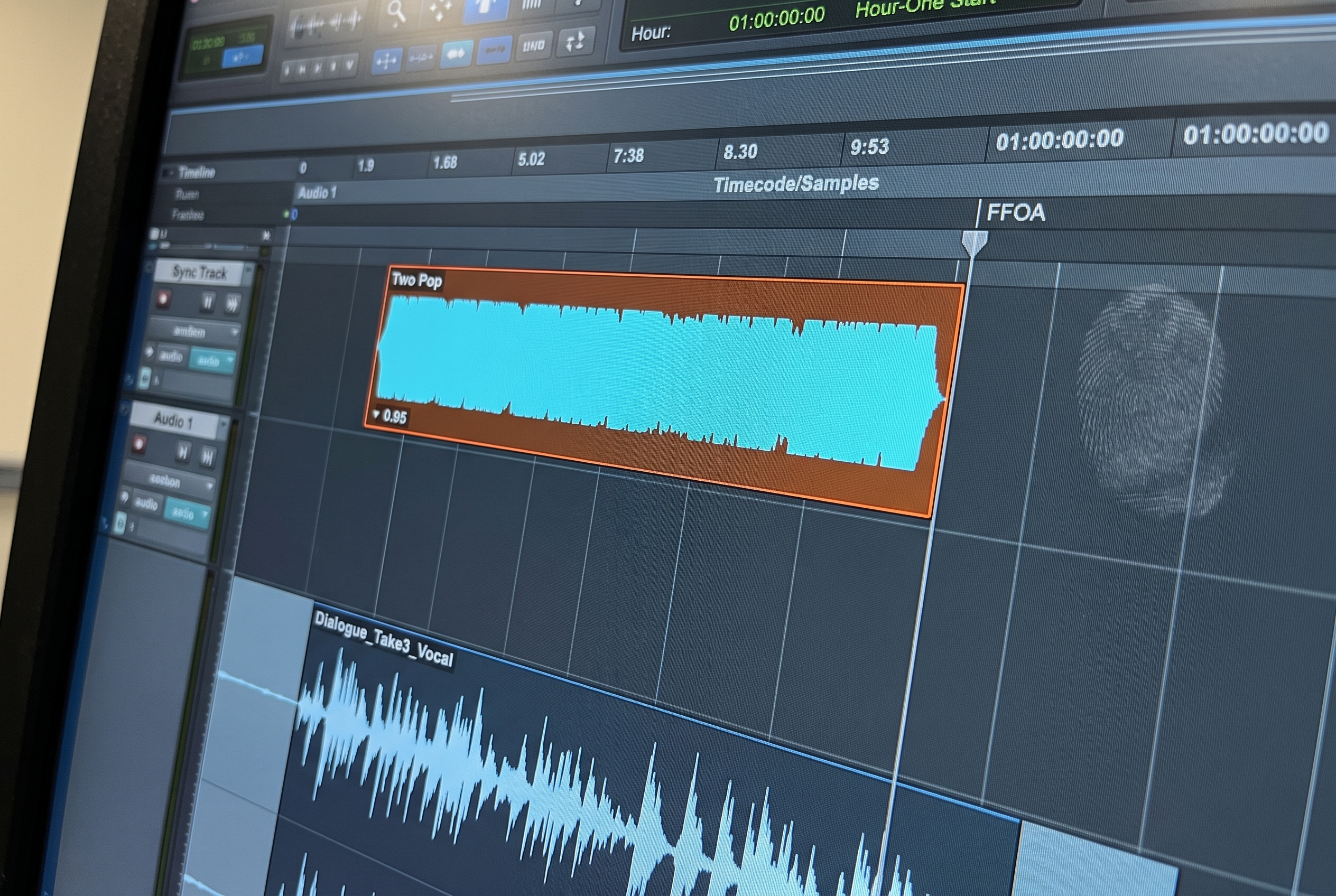
At a glance: AAF (Advanced Authoring Format) is the container file that moves a project from picture editing into audio post. Introduced in 1998 as an open-standard replacement for OMF, it carries audio clips, video reference, timecode, track layout, metadata, and volume automation across applications. What it does not carry reliably is the part that costs time: consistent track naming, any classification of what each clip contains, and the stereo structure the mix needs. An AAF imports into Pro Tools in about 30 seconds and still leaves two to three hours of session prep before creative work can begin. This guide covers what is inside the file, how it compares to OMF, what each NLE does differently on export, what gets lost on the way, and what the error dialogs mean when the file refuses to open.
An AAF lands in your inbox. You open it in Pro Tools. The clips load, playback works, the session is there. And that moment is where most professionals realize the file is only the start of the job, not the end of it.
An AAF is not a media file. It is a container that references media, carries the structure of a picture edit, and lands inside Pro Tools as a session organized around someone else's workflow. Understanding what the format actually is, what it carries through the handoff, and what it leaves behind is the difference between treating AAF prep as mysterious and treating it as a defined workflow with known failure modes.
This is a reference guide to the file itself. The step-by-step import process and the full workflow from AAF receipt to mix-ready session are covered in dedicated guides linked throughout.
What Is an AAF File
An AAF file is an Advanced Authoring Format container. It is the standard handoff file for moving a project from a Non-Linear Editor (NLE) into a Digital Audio Workstation (DAW), most commonly Pro Tools. The .aaf extension appearing in post-production inboxes is almost always the output of a picture editor and almost always the starting point of an audio professional's day.
The specification was published in 1998 by the Advanced Authoring Format Association, a group formed by Avid, Microsoft, and a consortium of post-production vendors who needed a way to move media projects between applications without losing structural data. It was designed as an open standard from the outset, meaning any application can implement AAF export and import. The spec is now maintained by the Advanced Media Workflow Association (AMWA).
AAF was introduced to solve a specific handoff problem: picture edits move across applications, and the bits of a timeline that matter (clip positions, track names, automation, metadata) need to survive that move. The format solves that problem well in principle. In practice, uniform implementation across NLEs is not what the ecosystem actually delivers.
What Is Inside an AAF File
The AAF specification defines a rich structure of object types. A file produced by a modern NLE typically contains:
Compositions. The timeline of the project, including every clip, its start time, its duration, and its position in the session.
Track objects. A description of each audio and video track in the source timeline, including names assigned in the NLE, track type (mono, stereo), and position.
Essence descriptors. Pointers to audio and video media. AAF supports two models: embedded essence, where media is stored inside the AAF container, and external essence, where the container references files on disk. NLEs typically use external essence for file-size reasons, which is why AAFs arrive as small files alongside large folders of audio, not as single self-contained archives.
Metadata. Clip-level metadata including source timecode, scene, take, channel name, roll, and NLE of origin. Some NLEs preserve all of this. Others preserve almost none of it.
Automation envelopes. Volume, pan, and mute automation from the source timeline. This is what OMF could not reliably carry and what drove the industry to adopt AAF.
Effects descriptors. References to plug-in effects used in the timeline. Support varies by NLE and by effect type. In practice, most plug-in effects do not transfer reliably, and the audio professional rebuilds signal processing in Pro Tools.
The file on disk is structured as an OLE Structured Storage compound file, a Microsoft format that allows hierarchical object storage in a single binary. That implementation detail matters for one practical reason: when an AAF fails to open or produces errors in Pro Tools, the file is usually not recoverable by a third-party inspector. Compound file corruption is not gracefully recoverable. When an AAF fails, it tends to fail completely.
AAF vs OMF
Before AAF, the standard interchange file was OMF (Open Media Framework), an earlier Avid format. OMF moved audio from picture edit to Pro Tools, but it lost things along the way.
The practical difference is that OMF forced a manual rebuilding of track names and volume automation on the audio post side. AAF carries both. That is the single biggest reason post production moved to AAF and why OMF is rarely used today. An OMF arriving in 2026 usually means a picture editor is using an older version of Media Composer or exporting out of habit. Either way, the right response is to request an AAF instead.
How AAF Is Used in Audio Post
The standard workflow in a post production facility looks like this:
- Picture editorial locks or near-locks a cut in the NLE.
- Picture editorial exports an AAF and a corresponding video reference (usually a QuickTime).
- Audio post receives both.
- The AAF is imported into Pro Tools via File > Import > Session Data.
- The audio professional begins the session prep work required before any creative work can start.
That last step is the one that costs time. An AAF that imports cleanly into Pro Tools is a session organized around the picture editor's workflow, not the audio professional's. Tracks are named by role in picture (Audio 1, Audio 2, SFX, VO), if they are named at all. Clip content does not reflect audio function: dialogue lands on SFX tracks, music clips sit alongside atmosphere, and stereo files arrive split into mono pairs from some NLE sources. Nothing is mapped to the facility's routing template.
A professional re-recording mixer with no assistant can spend two to three hours per session on that prep, sometimes approaching half a day on complex projects. The cost is invisible to clients, who see only the finished mix.
The full step-by-step import process, including the Pro Tools settings that actually matter, is covered in the AAF import guide. The complete workflow from AAF receipt to mix-ready session is covered in the AAF workflow guide.
What Each NLE Does Differently in AAF Export
The AAF specification is open, but implementation is not uniform. The AAF you receive depends on which NLE generated it and, sometimes, which version of that NLE was used.
Avid Media Composer produces the most consistent and reliable AAF exports of any major NLE. The format was developed alongside Media Composer, and the implementation reflects that history. Stereo handling is predictable when the export is configured correctly. Metadata travels through the chain. The primary thing to confirm is that handles are included in the export, because they are off by default and must be enabled manually. Two seconds is the minimum for dialogue editing; ten seconds is the professional standard.
Adobe Premiere Pro is the most common source of split-mono stereo problems. When Premiere exports stereo content, it frequently creates Audio 1 (mono) alongside Audio 1.L and Audio 1.R on the same named track, resulting in a combination of mono and split stereo on what looks like a single track in Pro Tools. The "Copy Complete Audio Files" export mode is the one to use, not "Embed Audio." Nested clips, merged clips, and multi-camera sequences often do not resolve cleanly. Export behavior changes meaningfully across Premiere versions, so the NLE version is worth confirming before import. The detailed walkthrough is in the Premiere AAF export guide.
DaVinci Resolve is the least consistent AAF exporter among the major NLEs. Missing audio, broken clip references, and metadata that does not survive the transfer are common enough to warrant a Plan B. The reliable workaround when Resolve-originated AAFs are causing repeated problems is covered in the DaVinci Resolve AAF export guide.
Final Cut Pro X has no native AAF export. The standard workflow is to export an FCP XML and run it through X2Pro from Marquis Broadcast, which generates a Pro Tools-compatible AAF. X2Pro handles FCP X audio roles well, which is the main metadata that needs to survive the conversion.
What the AAF Carries That Often Does Not Survive to Pro Tools
The AAF specification supports a wide set of metadata fields. In practice, what lands in Pro Tools is a subset of what was available upstream.
What usually survives the handoff:
- Clip position and duration
- Track names, when the picture editor named them
- Volume automation
- Source audio references, when they are not corrupted
- Timecode (usually)
- Sample rate metadata
What often does not:
- Scene and take metadata from production sound
- Source NLE version and project identifiers
- Non-standard plug-in effects and signal processing
- Custom markers and comments
- Accurate stereo versus mono track type information from Premiere sources
When critical metadata is absent, the fallback is an EDL (Edit Decision List), a separate text file that reconstructs the edit sequence independently. Asking picture editorial for an EDL alongside the AAF is a small request at export time and a significant recovery option when the AAF comes through incomplete.
Common AAF File Errors and What They Mean
| Error | What you see in Pro Tools | Likely cause | Recovery |
|---|---|---|---|
| AAF will not open | Error on import, no session loads | File corruption or NLE export failure | Request re-export from picture editorial |
| Wrong timecode positions | Clips align incorrectly with video reference | Session timecode mismatch, mixed timecode conventions | Verify session timecode start; align with picture editorial on convention |
| Corrupt AAF from Resolve | Import errors or missing audio entirely | Known Resolve AAF inconsistency | Request XML-based workaround via bridge tool |
Why Inspecting an AAF Before Import Matters
There is a specific failure mode in the standard AAF workflow: the file imports without visible errors, but the session that results is already broken. Stereo is split, metadata is missing, handles are inadequate, and the only way to discover it is to begin organizing the session and find the problems one by one.
Pro Tools itself does not offer a preview of AAF content before import. The session has to open, and the problems surface during playback or during session prep. By then, the file has been committed, and the recovery options are narrower: relink, re-export, or work around whatever is broken.
This is where fPost's approach differs from the standard path. Rather than importing first and fixing after, fPost analyzes the AAF before committing it to a Pro Tools session. The file is opened, clips are classified as dialogue, music, or SFX, stereo and mono issues are detected, metadata completeness is flagged, and the session layout is previewed against the facility's template. If something is wrong with the AAF, whether that is corruption, missing handles, Premiere dual-mono stereo, or metadata gaps, it surfaces before the Pro Tools session is built, not after.
Preserving the untouched original alongside the organized version is automatic, so the question "what did editorial actually send?" is always answerable without reconstructing history.
Frequently Asked Questions
What is an AAF file?
An AAF file is an Advanced Authoring Format container. It is an open-standard file used to move a project between applications in post production, most commonly from a picture-editing NLE into Pro Tools. It carries audio clips, video reference, timecode, track layout, metadata, and volume automation.
What does AAF stand for?
AAF stands for Advanced Authoring Format. The specification was published by the AAF Association in 1998 and is maintained as an open standard by the Advanced Media Workflow Association.
What is the difference between AAF and OMF?
AAF is the newer format, introduced in 1998, and it carries volume automation, track names, and metadata through the export and import cycle. OMF, the predecessor, loses volume automation and track names and has a 2 GB file size limit. OMF is rarely used today, and requesting an AAF instead is standard practice in current post production.
Can Pro Tools open AAF files?
Yes. Pro Tools imports AAF via File > Import > Session Data. The import itself takes about 30 seconds. The session prep work that follows the import is where most of the time goes.
What do I do when my AAF imports but the session is broken?
This is the standard case, not an exception. An AAF that imports cleanly is organized around the picture editor's workflow, not the audio post workflow. Content types are scattered across tracks, names are generic, nothing is mapped to a facility routing template, and stereo and mono handling may need correction. The prep work to fix this is where two to three hours per session typically goes, and it is what fPost is designed to automate.
Why does my AAF from Premiere have split stereo?
Premiere's AAF export behavior frequently splits stereo into mono pairs, producing Audio 1.L and Audio 1.R on the same named track. This is a known characteristic of the Premiere-to-Pro Tools workflow. It has to be detected and re-interleaved before routing.
Can I inspect an AAF file before importing it into Pro Tools?
Pro Tools itself does not offer a preview of AAF content before import. The file has to be imported before any visibility into its contents becomes available. fPost analyzes AAF contents before the Pro Tools session is committed, classifying clips by content type, detecting stereo and mono issues, and flagging metadata gaps.
How long does AAF prep take?
For a clean source with a consistent facility template, prep can be done in 30 to 60 minutes. For complex sessions or Premiere-originated material with split stereo, scattered content, and unreliable metadata, two to three hours is typical. Long-form episodic or dense variety content with large track counts can approach a full day.
Do I still need OMF support in Pro Tools?
Only for legacy projects. Modern AAF-capable NLEs produce better handoffs than any OMF export, and the small number of facilities still sending OMF typically have an AAF option available with a different export setting. Request an AAF when possible.
If your facility is looking to reduce the time between AAF handoff and session-ready status, fPost analyzes and organizes AAF and PTX sessions before the Pro Tools session is built. More at forte-ai.com/fpost.