Built on Real Studio Workflows
Before we walk through the product, a quick note on how we got here.
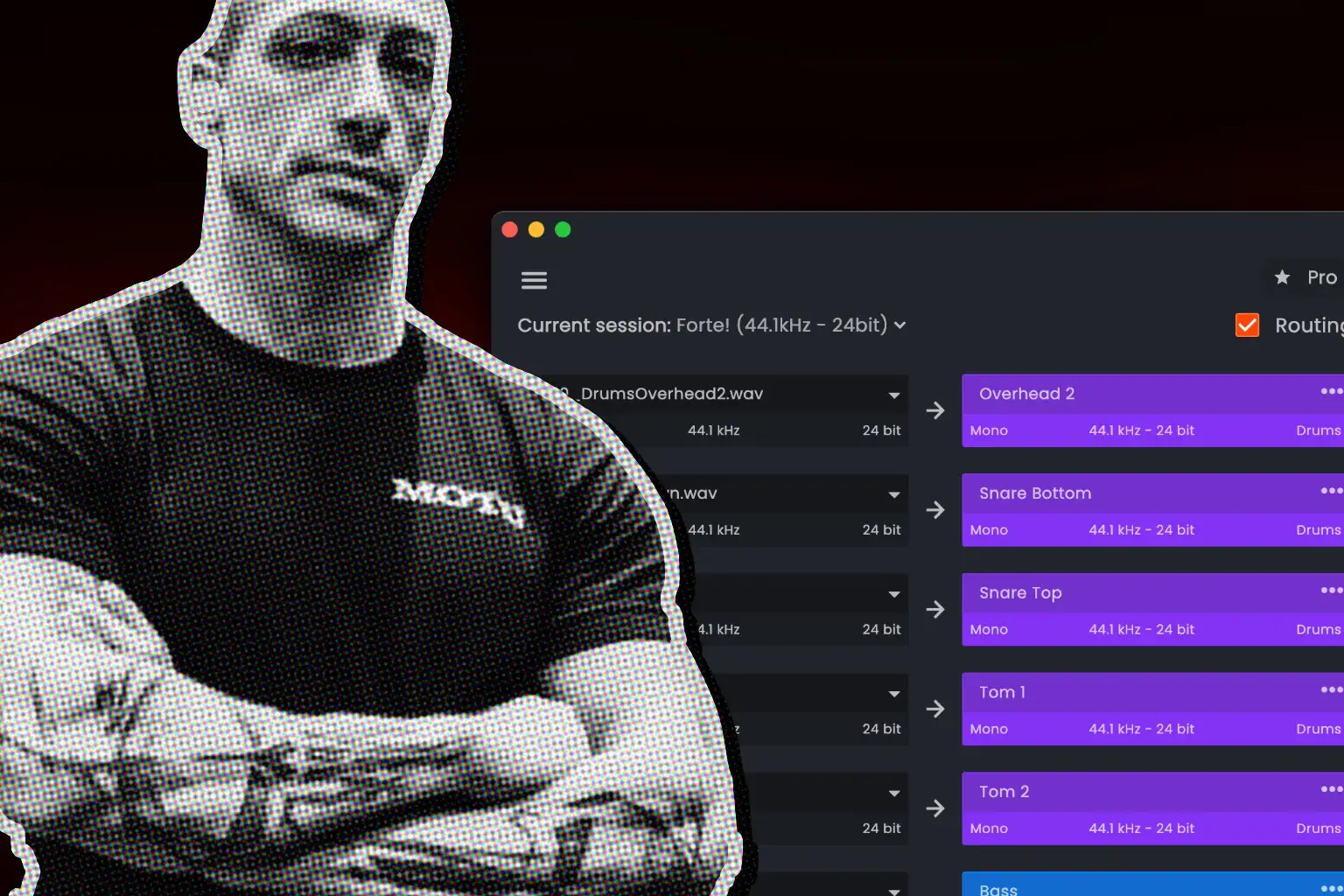
You probably remember Forte. It was built to solve a very specific problem: the tedious, manual process of importing stems into Pro Tools, naming them, coloring them, and routing them to the right buses. It saved engineers countless hours of session prep.
But preparing the mix is only half the battle. The other half happens at the end of the day, when the mix is approved and you need to print deliverables: instrumentals, acapellas, drum stems, bass stems, often in multiple sample rates and bit depths.
fMusic is the evolution of Forte. It takes the automated import engine you already know and pairs it with a completely new, fully automated export and bounce system. And it supports multi-session queuing.
What This Covers
If you work as a mix engineer, you already know the problem. A client sends you 50 raw audio files for a 4-song EP. Before you can touch a fader, you have to import everything, figure out what's what, color code it, route it to your template, and fix the mono files they accidentally exported as interleaved stereo.
Then, when the mix is done, you sit at your desk for another two hours printing different versions and stems.
fMusic is built to automate both ends of that process: importing tracks into a template, and then setting up an automated queue to bounce multiple prints across multiple sessions while you literally take your hands off the keyboard.
This post covers the full workflow, section by section, so nothing gets lost.
Two Workflows, One Tool
fMusic handles the two most time-consuming scenarios in music mixing.
The first is Mix Prep (Import): getting raw stems into your DAW, organized, and ready to mix. The second is Deliverables (Export): printing the final mix and all required stems and alternate versions.
Both workflows run through the fMusic interface. The goal is the same: eliminate the repetitive clicking so you can focus on mixing.
The Import Workflow
Smart Recognition & Routing
You click Import Files, select your tracks, and fMusic's AI immediately recognizes what they are. It color-codes them according to your preferences (e.g., drums in green, bass in dark red, guitars in blue, vocals in red).
When you click "Set Routing Options," fMusic reads the routing of your open Pro Tools session. It automatically busses all your newly imported tracks to the correct auxes based on your existing template.
Strip Silence & Mono Detection
During import, fMusic handles the cleanup. You can set it to automatically strip silence from the regions. More importantly, it features "Stereo to Mono" detection: if a client sends you a mono vocal track that was printed as a stereo file, fMusic recognizes it and automatically imports it as true mono.
The Multi-Session Queue
If you are mixing an EP, you don't have to import one song at a time. You can set up the import for Song 1, hit "Add to Queue," open the session for Song 2, set it up, and queue it as well. fMusic will open the first session, import everything, close it, open the second session, and import everything there, all automatically.
The Export Workflow
The biggest update to fMusic is the Export tab. It is currently the only software on the market that handles both the import and the bounce side of mixing.
Custom Prints & Categories
When you need to print stems, you don't have to hunt for tracks. fMusic reads your routing. If you create a "Drums" category and point it to your drum bus, fMusic will automatically select all the tracks routed there. You can easily create custom prints for Instrumentals, Acapellas, or Drum & Bass stems.
Favorite Prints
Every mix engineer has a standard set of deliverables they always provide. With fMusic, you can save your Custom Prints as "Favorites." Save an Acapella and a Drum & Bass stem as Favorite Prints, and for every future mix those prints are one click away.
Multi-Format Bouncing & Timeline Selections
When setting up your prints, you can dictate the audio format. Need a standard 16-bit/44.1kHz file for the client and a 32-bit/48kHz high-res version for archiving? Select both. fMusic will print multiple formats simultaneously.
You can also bounce specific timeline sections. If you tweak a guitar solo in the chorus, select that portion of the timeline, create a Custom Print, and fMusic will bounce only that section.
Native Keyboard Shortcuts
fMusic runs in the background and responds to native shortcuts directly inside Pro Tools. Select a group of tracks, hit Cmd + Option + C, and the fMusic window instantly opens, ready to create a Custom Print from your selection, with all tracks grouped. Cmd + Option + V opens the fMusic window to let you create an "individual tracks" print.
The Multi-Session Bounce
This is where the time savings become massive.
You set up your export parameters (Instrumental, Acapella, Drums) for Song 2 and click "Add to Queue." Then you open Song 1, set up the same prints, and queue them.
Hit go, and take your hands off the mouse.
fMusic prints all four deliverables for the first song in two different sample rates, saves the session, closes it, automatically opens the second session, and prints the remaining deliverables. You can queue up 5, 10, or 20 songs, leave your desk for the night, and come back the next morning to folders full of perfectly organized stems.
Note: fMusic relies on your session's routing. It works best for engineers who utilize a consistent mixing template.
Why This Matters
The time cost of session prep and stem printing is real. Mix engineers spend hours on mechanical, repetitive work before any creative decision is made, and hours after the creative work is finished.
That work doesn't make the mix sound better. It just eats into your day.
fMusic removes it.
Try fMusic
fMusic is available now. It works seamlessly with Pro Tools and Logic. If you're mixing music and want to stop wasting time on imports and bounces, forte-ai.com/fmusic is where to start.
Frequently Asked Questions
What is fMusic?
fMusic is a session prep and automated bounce tool from Forte AI for mix engineers. It connects to Pro Tools and Logic, automatically imports and routes raw audio files, and fully automates the export of deliverables, stems, and alternate mixes, including multi-session queuing.
What does fMusic automate during import?
fMusic handles track recognition, color-coding, naming, template routing, stereo-to-mono conversion, and stripping silence. What normally takes an hour of manual setup happens in seconds.
What does fMusic automate during export?
fMusic allows you to create Custom Prints (like Instrumentals or Acapellas) based on your routing. It can bounce multiple stems simultaneously, in multiple sample rates and bit depths, without manual intervention.
What is the Multi-Session Queue?
The Queue allows you to set up import or export tasks across multiple different Pro Tools or Logic sessions. fMusic will automatically open a session, perform the tasks (like bouncing stems), save, close the session, and move on to the next one in the queue while you are away from the computer.
Which DAWs does fMusic support?
fMusic currently works seamlessly with Avid Pro Tools and Apple Logic Pro.
Who is fMusic built for?
Mix engineers, record producers, and audio professionals who want to eliminate the manual labor of session prep and stem printing.