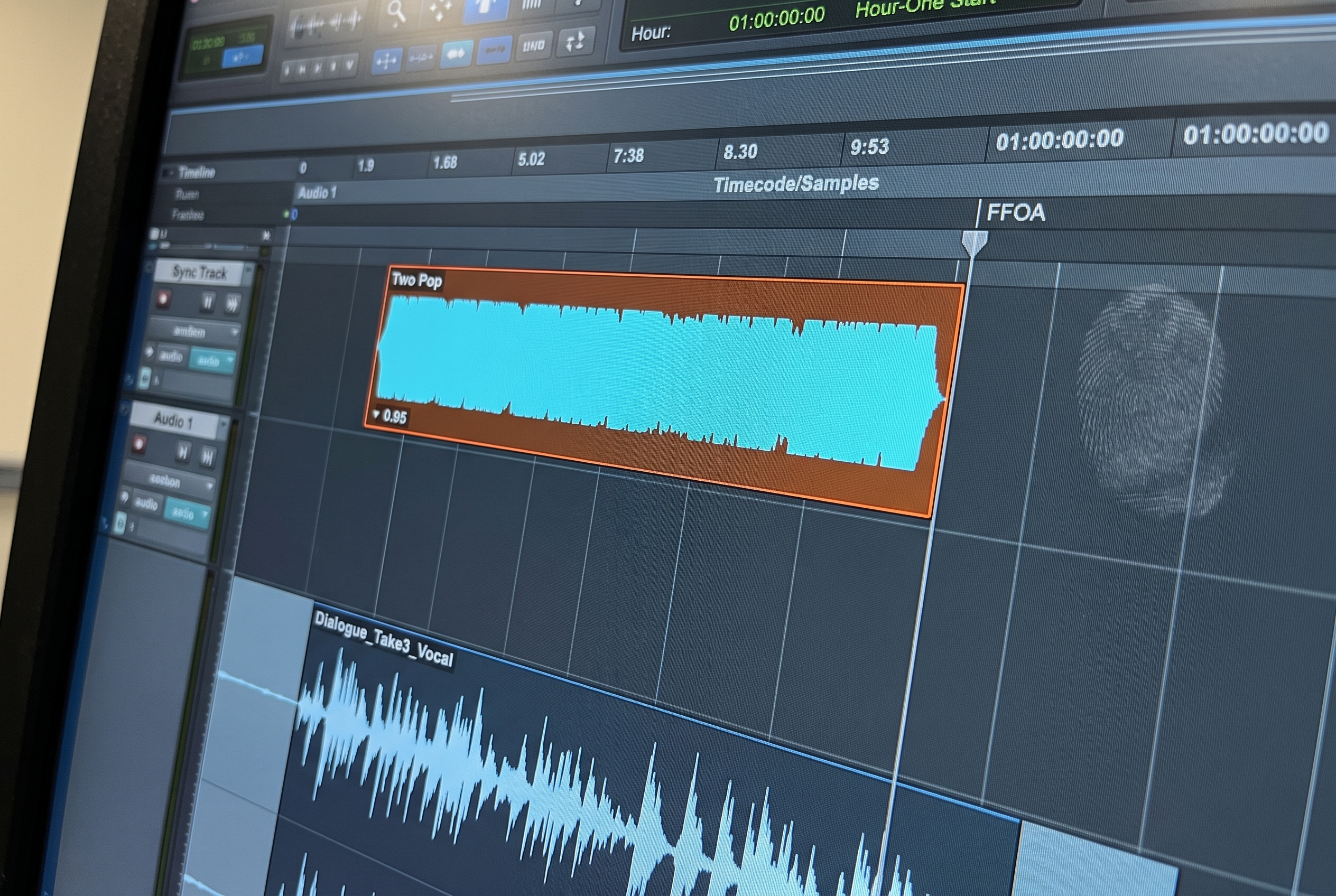
When an AAF from Adobe Premiere Pro lands in Pro Tools and stereo tracks arrive as two separate mono files, the session prep work that follows is not a minor inconvenience. On a 60-track session where a third of the tracks are affected, identifying and fixing each split pair manually takes longer than most engineers budget for before a session starts. This article covers what dual-mono is, why Premiere creates it consistently, what it costs in prep time, how to fix it in Pro Tools, and why fPost was specifically built to handle this problem automatically as part of the import pass.
What Dual-Mono Actually Is
Dual-mono and split stereo describe the same structural problem. A stereo recording that should arrive as a single interleaved stereo file arrives instead as two separate mono files, one carrying the left channel and one carrying the right.
In a correctly exported AAF, a stereo room tone recording is a single interleaved file. Both channels travel together, the file imports as a stereo clip on a stereo track, and the engineer routes it once.
In a dual-mono export, that same recording becomes two files. Depending on Premiere's version and the sequence settings, they are typically named with a channel suffix: Audio 1.L and Audio 1.R, Stereo 1.1 and Stereo 1.2, or in the worst case, Track 1 and Track 2 with no suffix at all, making identification harder. Both files contain mono audio. In Pro Tools, they appear on separate tracks, route independently, and require individual attention before any session organization can proceed.
The audio content is not lost or damaged. The format is wrong, and at session prep scale, wrong format is a time problem.
Why Premiere Creates Dual-Mono Files
Premiere's dual-mono behavior is not a bug in the conventional sense. It follows directly from how Premiere handles audio channel assignments in the sequence and what it does with that structure at export.
Mono sequence settings. A Premiere sequence set to mono audio tracks exports all audio as mono regardless of what the source clips actually contain. Stereo source media gets split into two separate mono outputs rather than one interleaved stereo file. The picture editor sees and hears nothing wrong in Premiere. The session plays back correctly. The split is invisible until the AAF opens in Pro Tools.
Multichannel clip interpretation. When a clip from a multi-channel recording device is imported into Premiere, the clip's default channel interpretation may be dual mono rather than stereo. If that interpretation was never corrected during the edit because nothing sounded wrong, the AAF carries the dual-mono structure out on export.
The "Break Apart Multichannel Audio" setting. Premiere's AAF export dialog includes an option that determines whether multi-channel clips export as separate mono files or stay interleaved. It is not always labeled clearly and its default state varies by Premiere version. When it is on, stereo content exports as two mono files. For most audio post handoffs, it should be off.
The picture editor working in Premiere has no strong reason to notice any of this. The audio plays back correctly in the timeline. It is only after the AAF arrives in Pro Tools that the structural problem becomes visible, at which point fixing it falls entirely on the audio post team.
What It Looks Like When the AAF Lands in Pro Tools
A session that looked like 40 tracks in Premiere may arrive in Pro Tools with 55 or 60. The extra tracks are not new content. They are the split halves of stereo pairs that should have been single tracks.
The naming pattern depends on Premiere's version and the original clip names. Common patterns:
- Audio 1.L / Audio 1.R
- A1.L / A1.R
- [Clip Name].L / [Clip Name].R
- Track 1 / Track 2 (no suffix, making identification depend entirely on waveform comparison)
In Pro Tools, dual-mono pairs are distinguishable once you know what to look for: identical waveforms on adjacent tracks, matching timecode positions, named with corresponding suffixes. They can also be confirmed by panning each track hard and listening. A genuine mono track and a duplicate left channel of a stereo pair sound identical in isolation. The stereo image collapses when both halves play together on adjacent mono tracks rather than as an interleaved stereo file.
On a session with inconsistent naming, the audit before the fix takes longer than the fix itself.
The Time Cost at Scale
The dual-mono problem is not difficult to fix on one track. Route the L channel to the left input of a stereo track, the R channel to the right input, record a pass, replace the originals. That process takes three to four minutes per pair including the record pass.
On a session with 20 split pairs, that is over 90 minutes of purely mechanical work before any actual mix prep begins. For corporate and commercial content produced in Premiere, 20 split pairs on a 60-track session is not unusual. Engineers who work heavily in this segment see it on almost every incoming AAF from certain client workflows.
Users who joined the fPost early research described this as the single most time-consuming part of Premiere AAF prep, ahead of track naming issues, missing handles, and metadata problems. Three engineers working primarily with Premiere-originated content specifically named stereo and dual-mono handling as a feature they needed from any tool they would adopt. The pattern was consistent: the problem was common, fixable in principle, and absorbing a material amount of prep time on every affected project.
That time is not recoverable on the project budget. It is absorbed as overhead on the prep session and repeated from project to project because the source of the problem is upstream in the picture editorial workflow.
How to Identify Dual-Mono Tracks in Pro Tools
Before fixing split pairs, find all of them. Missing one creates a phantom mono track with no stereo partner, which will not become obvious until later in the mix when the stereo image is off.
A systematic identification pass:
Sort tracks by name. In Pro Tools, tracks can be sorted alphabetically in the Edit window. This groups L/R suffixed tracks together and makes the pattern visible. Even with inconsistent naming, sorting surfaces most pairs.
Compare waveforms visually. A dual-mono pair has identical waveform shapes on both tracks. Zoom in to a section with clear transients and compare. Identical waveforms confirm a split pair.
Listen with panning. Pan one track hard left, listen. Pan it hard right, listen. If the content sounds the same in both positions, the track contains mono audio regardless of how it is labeled.
Count against the Premiere session. If the picture editor can provide a track count from the Premiere timeline, compare it to the Pro Tools import. A discrepancy of more than a few tracks suggests split pairs were not resolved.
Fixing Dual-Mono in Pro Tools: The Manual Process
Pro Tools does not have a single native command that identifies and interleaves split pairs. The practical manual workflow:
Create a new stereo audio track. Route the L channel mono track to input 1 and the R channel mono track to input 2 of the stereo track. This reconstructs the stereo signal in the session routing.
Record-enable the stereo track and run a pass across the length of the affected clips. The output is a new interleaved stereo file with both channels combined correctly.
Confirm the timecode placement matches the original clips before removing the source tracks. Then mute or delete the original L and R mono tracks and replace them in the session with the new stereo file.
For engineers with access to third-party tools, iZotope RX and similar utilities have interleave functions that can handle multiple file pairs outside the session. The result still requires manual import back into Pro Tools.
This workflow is correct. It does not scale. At 20 pairs, it is 90 minutes. At 30 pairs, it is over two hours. For facilities handling Premiere-originated content regularly, manual dual-mono correction is not a sustainable workflow model.
How fPost Handles It
fPost was built with Premiere dual-mono detection and conversion as a confirmed core feature, not an edge-case workaround. It is listed as a primary value proposition in the product because the engineers who were involved in fPost's development specifically asked for it. The pattern they described was identical: high-volume Premiere content, every project has split pairs, the fix is mechanical and time-consuming, it contributes nothing to the quality of the finished sound.
When an AAF arrives in fPost, the import process does not start with the analysis of the track names or metadata. It analyses the audio content of each incoming clip directly. That analysis handles both the content classification part of the problem, identifying dialogue, SFX, and music for template routing, and the format correction part: detecting which stereo tracks arrived as dual-mono pairs, interleaving them correctly, and placing the corrected files into the session rather than the originals.
This matters because the two problems arrive together. A Premiere AAF with dual-mono issues also has track naming that does not match audio post conventions, content mixed across tracks without organization, and structure that does not map to the facility template. Fixing the stereo format manually and then still having to do the full content organization pass manually is two rounds of mechanical work before the session is usable. fPost runs both in the same automated pass.
The import process also preserves Import Session Data throughout, keeping the original timecode, automations, and timeline structure intact even as the session is reorganized. A safety copy of the untouched original is always preserved alongside the organized version, so if anything needs to be verified against the source AAF, it is available.
For facilities where consistency across engineers and shifts is a hard requirement, fPost's automated pass produces the same output every time regardless of who runs it. The corrected session that one engineer produces on Tuesday looks the same as what another engineer would produce on Friday, because neither of them is making judgment calls about which pairs to interleave or how to route content. The logic runs once on import and the result is deterministic.
The fPost product page covers the full workflow, and the fPost technology overview explains how AI content detection drives the classification and routing decisions.
Preventing It at the Premiere Export Stage
The most efficient solution to the dual-mono problem is fixing it before the AAF leaves Premiere. A picture editor who understands the issue and knows the correct settings can prevent it entirely, and the changes are straightforward.
Before exporting, check the sequence audio track format. A sequence using mono tracks exports dual-mono regardless of other settings. Confirm tracks are set to stereo and that clip channel assignments reflect stereo where the source is stereo.
In the Premiere Pro AAF export dialog, turn off "Break Apart Multichannel Audio" unless the audio post team has specifically requested split channels for multi-channel production recordings. This single setting controls the majority of dual-mono export behavior from Premiere.
For individual clips that are set to dual-mono interpretation, right-click the clip in the Project panel and check the audio channel mapping before export. Clips showing as two independent mono channels should be reinterpreted as stereo.
These checks add under ten minutes to the picture editor's pre-delivery process and eliminate the problem entirely on the audio post end. For facilities with an established relationship between picture editorial and audio post, this becomes part of the standard export protocol. For workflows where the picture editor and audio post team are not in close contact, fPost's automated detection handles what arrives regardless of the upstream export configuration.
The full Premiere export settings walkthrough for Pro Tools handoffs is in the Premiere Pro AAF export guide, which covers handle length, embedded vs. referenced audio, nested sequences, and every other setting that determines whether an incoming AAF is workable on arrival.
The Broader Pattern
Dual-mono is the most visible format problem in Premiere-to-Pro Tools handoffs, but it arrives as part of a predictable set of structural issues: split stereo, missing handles, nested sequences that collapsed on export, inconsistent track naming, metadata that did not survive the AAF conversion.
None of these problems are random. They follow from specific Premiere behaviors that do not affect playback in Premiere. The AAF export is the translation point where Premiere's internal representation of the session becomes audio post's preparation problem.
For more on the full scope of what that preparation problem involves, the AAF workflow guide covers the complete post-import organization process, and the step-by-step AAF import guide covers the import settings on the Pro Tools side.
Frequently Asked Questions
What is the difference between dual-mono and split stereo in the context of Premiere AAF exports?
The terms describe the same problem: a stereo recording that arrives in Pro Tools as two separate mono files instead of a single interleaved stereo file. Dual-mono is the more technical term (referring to two identical mono channels), while split stereo describes the practical result in the session. Both trace back to the same set of Premiere sequence and export settings.
Why does Premiere export some tracks as dual-mono and others as interleaved stereo?
Premiere's export behavior reflects the channel assignment and track format settings in the sequence, as well as the channel interpretation of individual clips. Clips on mono sequence tracks, or with dual-mono clip interpretation, export as two separate mono files. Clips on stereo tracks with correct stereo interpretation export as interleaved stereo. A single Premiere timeline can contain both, which is why some tracks arrive correctly as stereo while others arrive as split pairs.
Does fPost fix split mono tracks automatically?
Yes. Dual-mono detection and stereo conversion is a confirmed core feature of fPost's import process. When an AAF is imported through fPost, split mono pairs are detected from the audio content itself and interleaved correctly as part of the automated prep pass, alongside content classification, template routing, and session organization. The corrected session includes Import Session Data preservation (timecode, automations, timeline structure) and a safety copy of the untouched original.
Can Pro Tools fix dual-mono natively without third-party tools?
Not in a single automated pass. The standard Pro Tools manual fix requires routing both mono tracks to a stereo bus, recording a pass to create an interleaved file, and replacing the originals. This is correct but time-intensive at scale. There is no native Pro Tools function that scans an entire session, identifies all split pairs, and interleaves them automatically.
Should the picture editor re-export the AAF if dual-mono is discovered in Pro Tools?
If a large proportion of the session is affected, a re-export from Premiere with corrected settings is the most efficient fix. The Premiere-side correction handles all tracks at once in under ten minutes, compared to three to four minutes per pair in Pro Tools. If only a few tracks are affected, the Pro Tools fix may be faster in practice.
How do you prevent dual-mono at the Premiere export stage?
Two settings cover most cases. First, verify that the sequence audio track format is set to stereo rather than mono before exporting. Second, turn off "Break Apart Multichannel Audio" in Premiere's AAF export dialog unless split channels have been specifically requested by audio post. For individual clips with incorrect channel interpretation, correct the clip's audio channel mapping in the Project panel before exporting.
fPost automates AAF import prep for Pro Tools, including dual-mono detection and stereo conversion, AI content classification for dialogue, SFX, and music, template routing, and Import Session Data preservation. Demo available at forte-ai.com/demo.