


 Simone Lovera

Leaving a batch running overnight is only worth it if you trust what happens when something goes wrong. A bounce that stalls on song three, or a session closed while you still had it open, costs you the morning you were trying to save.
The fMusic Extension now has the same queue as the fMusic desktop app. Line up imports, organizes and exports across as many sessions as you like, press Process all, and fMusic opens each session, runs its job and moves to the next while you are away. In audio post, the fPost Extension now has the PTX Splitter: one turnover in, a session per editor out. Both run from the Extensions panel in Pro Tools 2026.11, without leaving the session you are in.
Queue the whole album
You build a job the way you always do, an import, an organize or an export, and press Add to Queue instead of running it. The job waits in the queue with its settings and its session. You can add jobs from different sessions: each job remembers which session it belongs to, and fMusic opens that session in Pro Tools when the job's turn comes.
Process all (or Start) runs the queue from the top, one job at a time. Before anything runs, you can reorder jobs and remove the ones you no longer need. In the Extension, the queue sits behind a Queue button in the panel's top bar, so you can check it from any session.
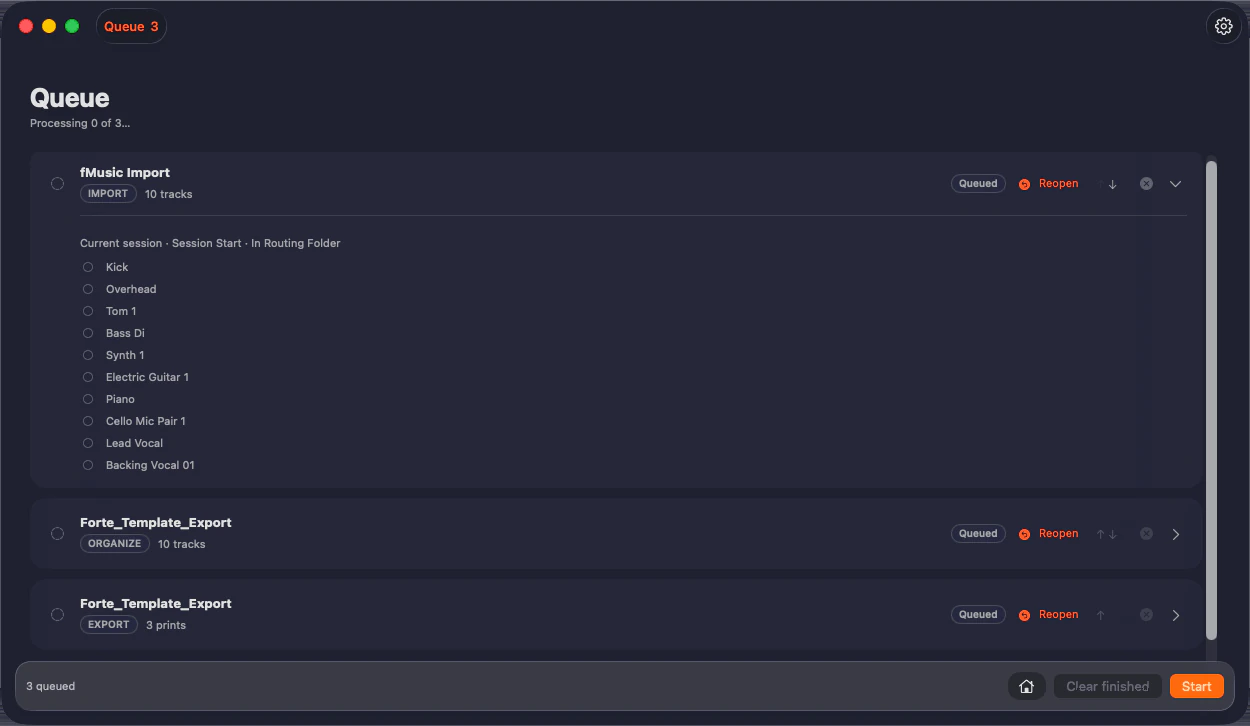
Every job has its own checklist: the steps of an import, or one row per print in an export. A failed row says why it failed, so you know what to fix instead of re-running the whole thing blind. One failed job doesn't stop the batch either. The next session has nothing to do with it, so the queue moves on, and the summary tells you how many completed and how many failed, for example “3 of 4 complete · 1 failed”.
The queue is saved on disk. If fMusic quits or crashes, the jobs that hadn't finished come back as queued when you reopen it. The queue documentation covers every option.
It stops when it should
An unattended run is only as good as the moments it decides not to carry on. These four protections are what make leaving the album overnight a reasonable thing to do.
It asks before closing your session. Pro Tools saves and closes the open session when another one opens, without asking. When the next job needs a different session, fMusic stops first and asks Open “Song 2”?, with the line The next job exports “Song 2”. Pro Tools will save and close “Song 1” to open it. It asks once per batch: after the queue has opened a session itself, it replaces it without asking again.
It pauses if Pro Tools quits. If Pro Tools quits or crashes mid-job, that job is marked failed with the reason: Pro Tools quit while this job was running. The queue is paused: press Start to continue with the rest. The rest of the jobs stay queued, and fMusic does not relaunch Pro Tools and keep driving it unattended. A half-written bounce file is deleted. When you are ready, press Start and it continues with the rest.
It pauses if the session changes under it. If the session open in Pro Tools changes while a job runs, the job stops with a sentence that names both sessions, and the queue pauses. The next bounce can't land on someone else's tracks.
It keeps what already finished. A job stopped halfway still shows the prints it had already delivered, so you only redo what is actually missing.
Close the panel, the run carries on
The queue runs in fMusic's helper process, not in the Extension panel. Closing the panel, docking it or switching sessions doesn't stop a run, and reopening the panel shows the run exactly where it is. A Pro Tools crash is handled the same way as in the desktop app: the queue pauses and nothing is relaunched behind your back.
The Extension and the desktop app keep separate queues. If both run at once, Pro Tools runs their jobs one at a time. The fMusic Extension docs explain the queue in the Extension, and our fMusic Extension guide covers import, organize and export inside Pro Tools.
fPost: one turnover, a session per editor
In audio post, the second news is for whoever hands sessions to a team. The PTX Splitter is a step of the fPost flow, after the Visualizer and the session settings, right before the final Import (for an AAF) or Organize (for the PTX session you have open). Its screen reads “Split your output, one session or many.”
By then fPost has sorted every clip into its category by listening to it: Dialogue, Music, SFX, plus Unknown and Others for what is none of them. Video is left out. The Splitter decides which session each category goes to, in one of three modes.
- 1 session. Everything goes into one session: the session open in Pro Tools if there is one, otherwise a new one.
- By category. One new session for each of Dialogue, Music and SFX, only for the categories that actually have clips. A project called “Ep104_Lock_v3” gives “Ep104_DX”, “Ep104_MX” and “Ep104_FX”.
- Custom. You build the list yourself with “Add output session”. Each session takes the categories you tick, so music and effects can share one session while dialogue goes on its own.
Every row is one Pro Tools session. For each one you choose its name, its destination (the current session, a new session in a folder you pick, or an existing .ptx), the categories that go into it, and “Import template tracks”, on by default, so each session is built on your template. fPost removes the characters a file name can't hold and won't start if two sessions have the same name. Under the list it counts what you have set up, for example “2 sessions · 140 / 160 clips routed · 20 skipped”. Clips in a category no session takes are not imported.
It tells you before it touches Pro Tools
The last click works on real Pro Tools sessions, so fPost asks first and says exactly what will happen: where the tracks go, how many clips won't be imported or moved, that the open session will be saved and closed first, naming the file (“Ep104_Lock_v3.ptx is saved and closed first.”), and the folder where new sessions are made.
Sessions then run one at a time, the current session first. For each one, fPost opens or creates the session, imports the turnover, moves every clip onto that session's tracks, and removes the tracks of the categories that session doesn't take. It never deletes a track that was in the session before the import. Each session is saved and closed as soon as its import is done, so the next one can open, and the last one stays open.
If one session has a problem, it is marked with the issue and the next one goes ahead. If Pro Tools stops answering, the run stops there and the sessions it didn't reach say “Not started”. The end screen lists every session the split made, each with its own Open button, plus the session you started from as the last row, so you pick where to go next.
In the fPost Extension
The Splitter works the same in the fPost Extension. A split closes the session the panel lives in, so the run happens in fPost's helper process: the split carries on while the session closes, and the panel picks the run up again in whichever session it reopens in. The end screen works the same way. The PTX Splitter docs cover each setting, and our fPost Extension guide covers AAF import inside Pro Tools.
How to get it
The fMusic Extension and the fPost Extension are separate Extensions, both in the Extensions panel. They need Pro Tools 2026.11 or later, macOS 13.5 or later, and Pro Tools' interface in English. Get the installers from Avid's Extensions page or from the Forte download page. The desktop apps keep their own requirements: fMusic and fPost need Pro Tools 2024.3 or later on macOS 13.5 or later.
The Extension and the desktop app are the same product, so one plan covers both, and the queue and the Splitter are part of the fMusic and fPost plans listed on the pricing page. Everything runs on your Mac and nothing is uploaded. If you are new to the Extensions, our launch post explains what they are.
Frequently Asked Questions
Can I queue jobs across sessions in the fMusic Extension?
Yes. The Extension has the same queue as the desktop app: press Add to Queue on any import, organize or export, for as many sessions as you like, then Process all. fMusic opens each session in Pro Tools when its job's turn comes, runs it and moves on.
Does the queue keep running if I close the Extension panel?
Yes. The queue runs in fMusic's helper, not in the panel, so closing or docking the panel, or a session switch, doesn't stop it. Reopen the panel and you see the run where it is.
What happens if Pro Tools crashes during a queue?
The job that was running is marked failed with the reason, and the rest of the queue pauses. fMusic doesn't relaunch Pro Tools on its own, and a half-written bounce is deleted. Reopen Pro Tools, press Start, and the queue continues with the remaining jobs.
Will the queue close the session I'm working on?
Not without asking. When the next job needs a different session, fMusic asks before Pro Tools saves and closes yours. Once the queue has opened a session itself, it replaces it without asking again.
Can fPost split a turnover into separate dialogue, music and effects sessions?
Yes. In the PTX Splitter, By category makes one session each for dialogue, music and effects, for the categories that have clips. Custom lets you choose which categories go into which session, so you can group them.
Can I split a session I already have open, or only an AAF?
Both. On an AAF the Splitter runs before Import; on the PTX session open in Pro Tools it runs before Organize.
What happens to clips in a category no session takes?
They're not imported. fPost counts them under the session list and repeats the number in the confirmation, so nothing is left out by surprise.
The fMusic Extension now queues the whole album across sessions and stops when it should, and the fPost Extension turns one turnover into a session per editor. See both at forte-ai.com/avid/fmusic and forte-ai.com/avid/fpost.