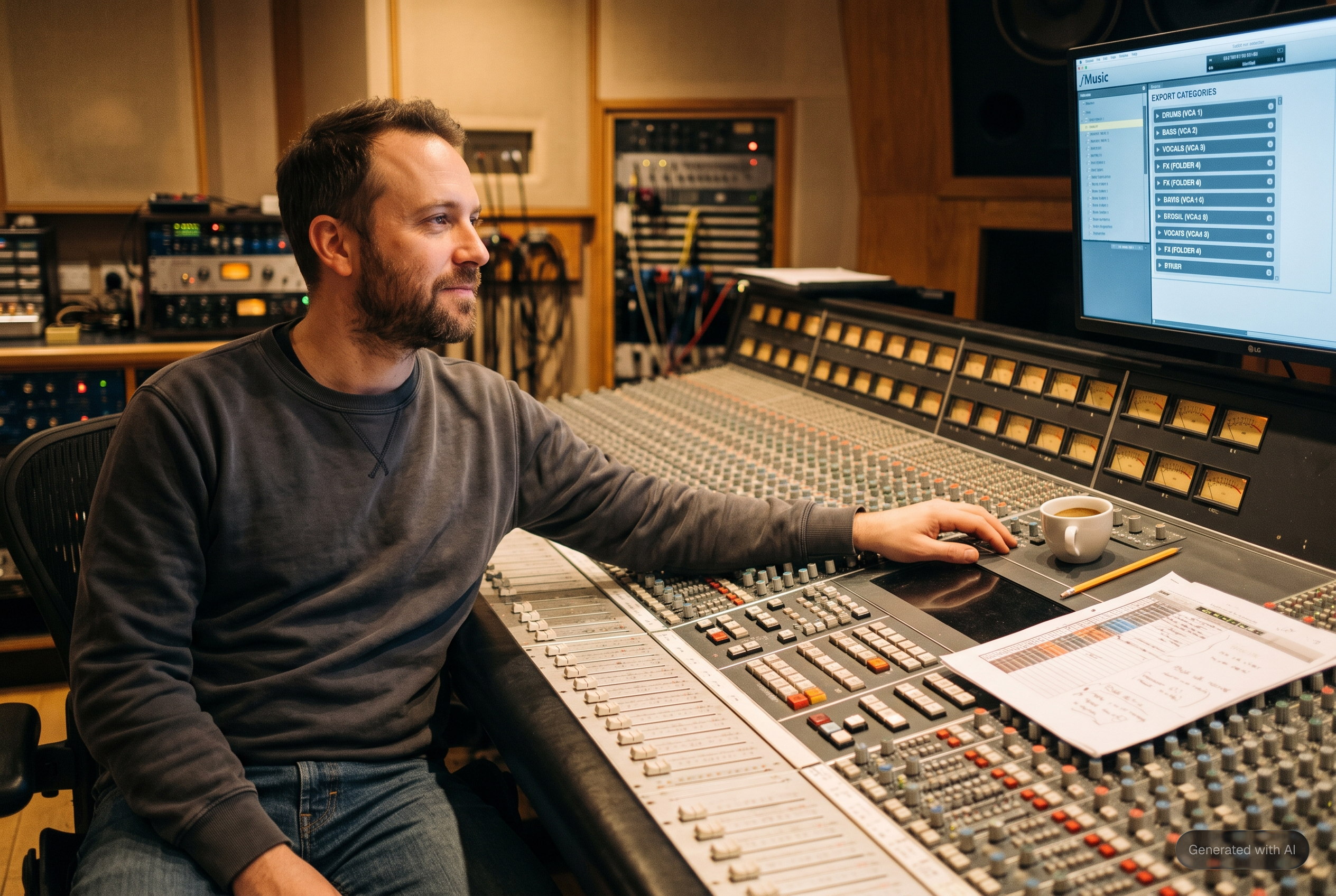
Somewhere between pressing go and Pro Tools finishing the import, every automation user has had the same thought: I hope it understood me. The screen offering an answer used to be a progress bar. In the new fMusic it's a timeline you can read, play and rearrange before anything is written.
From progress bar to screen
The visualizer is fMusic's own timeline view, built into the app, and every tier has it: Intro, Studio and Suite. Import and Organize both run through it. An import passes through it on the way to Pro Tools, and Organize loads the open session into it. Export works on the finished mix and doesn't use it. The gap between configuring and done is now a place where the work can be checked before it happens, which is the most visible change of the rebuild covered in the launch announcement.
What you see
Every file becomes a lane with its waveform drawn, and lanes are grouped by category in the order your settings define: all drums together, then bass, then guitars, in contiguous color groups. The import into Pro Tools follows that order, so the session you read in the visualizer is the session you get.
The display is faithful at the clip level too. Clips carry their position, their length and their offset into the source file, so strip silenced material shows as the short windows it really is. Full length copies stacked on top of each other would tell you nothing.
What happened before you see it
The lanes are the result of decisions already made, which is what makes checking them meaningful. Recognition runs on the whole set of files as one batch. The naming engine reads each file name first and only asks the model when the name says nothing useful, like Audio 03.wav. Recognition is always on: a file with a clear name keeps the name you shipped, because the name wins.
Stereo content is resolved even earlier. Pairs of mono files named .L and .R are merged into one stereo file, and every stereo file's actual content is classified as fake stereo (identical channels), hard panned to one side, or true stereo. Each case is handled by the rules you set in Settings. The verdicts stay visible as badges in the routing screen next to the editor, so you can see what was decided.
What you can do in it
Reorder tracks, and the new order is the order Pro Tools receives. Solo, mute and audition material. Playback runs through fMusic's own preview output, chosen once in Settings, so listening in the visualizer doesn't fight Pro Tools for the main interface or take over the room's monitoring. The + button in the track list header (Add Audio Files) resolves stereo content with the same rules as the import itself, so a file added late behaves exactly like the batch it joins.
In Organize, the visualizer is also where removals happen. fMusic records the session's tracks when they load, and a lane you remove is applied back to Pro Tools as a deletion.
A folder of stems, read at a glance
Drop the folder in. fMusic expands it recursively into its audio files and skips hidden files and anything that isn't audio, because producers deliver stems as folders and the folder should work as delivered. Recognition runs across the set, and the visualizer opens on the result: lanes in category order, colors already yours, names already resolved. The two files you don't trust, the one called FX_maybe and the stereo pad that sounds suspiciously mono, get a short solo through the preview output. Reorder if the order needs it, add the file the producer sent an hour later with the + in the track list, and continue to Session settings, where placement and destination live. By the time Pro Tools opens, there's nothing left to hope about.
The same screen in Import and Organize
Import and Organize share the visualizer on purpose. Organizing a session and importing into one are the same job, laying tracks out correctly, and they differ only in where the audio comes from. One screen to learn, and behavior that can't drift between the two flows. The full map of what moved where in the rebuild is in what changed from fMusic, and the flow built entirely on this screen, Organize, has its own piece.
Make it yours
The visualizer has its own pane in Settings. Timeline detail sets how finely waveforms are drawn. Grid mode chooses bars and beats or time, Grid spacing sets the step for the time grid, and Snap to grid turns snapping on or off. Under Tempo, Detect BPM reads the tempo from the audio and Link to session tempo follows the Pro Tools session. Preview output picks the audio device described above. Each one is set once and kept across sessions.
What follows the visualizer is visible too. Once an import runs, the processing view shows each step as waiting, in progress or done, with real progress in place of a spinner. A long automation that shows no progress is one people force quit.
What it doesn't do
The visualizer isn't a second DAW (digital audio workstation, the app where you record and mix, Pro Tools in this case). No plugins, sends or automation live in it, and the mixing stays in Pro Tools. It's the place to verify and arrange what will be written. It also doesn't replace the import options: where material lands, which session receives it and how tracks are placed are decided in Session settings, the screen that follows.
Every tier has the visualizer, with one limit. In fMusic Intro the editor shows the first eight tracks of an import or a session, and fMusic Studio and Suite have no track limit. The other tier differences are mapped in fMusic Studio vs Suite.
Frequently asked questions
Which fMusic tiers include the visualizer?
All of them. In fMusic Intro the editor shows up to eight tracks. Studio and Suite have no limit.
Do all flows use the visualizer?
Import and Organize do. Export works on the finished mix and doesn't go through it.
Can I listen to files before they're imported?
Yes. Solo, mute and audition work in the visualizer and play through fMusic's own preview output, so Pro Tools' monitoring stays untouched.
Does the order I set in the visualizer carry into Pro Tools?
Yes. Lanes are grouped by category in your settings' order, and the import into Pro Tools follows what you see.
Can I add a file after dropping the folder?
Yes. The + in the track list header (Add Audio Files) resolves stereo content with the same rules as the import, so a late addition behaves like the rest of the batch.
Can I turn recognition off?
No. The file name is read first and the model is only asked when the name says nothing useful, so well named files keep their names.
Can I mix in the visualizer?
No. No plugins, sends or automation live there. It's for verifying and arranging what will be written, and the mixing stays in Pro Tools.
The visualizer turns the blind moment of automation into a screen you can read, play and rearrange before Pro Tools is touched. The rest of the rebuilt fMusic is at forte-ai.com/fmusic.