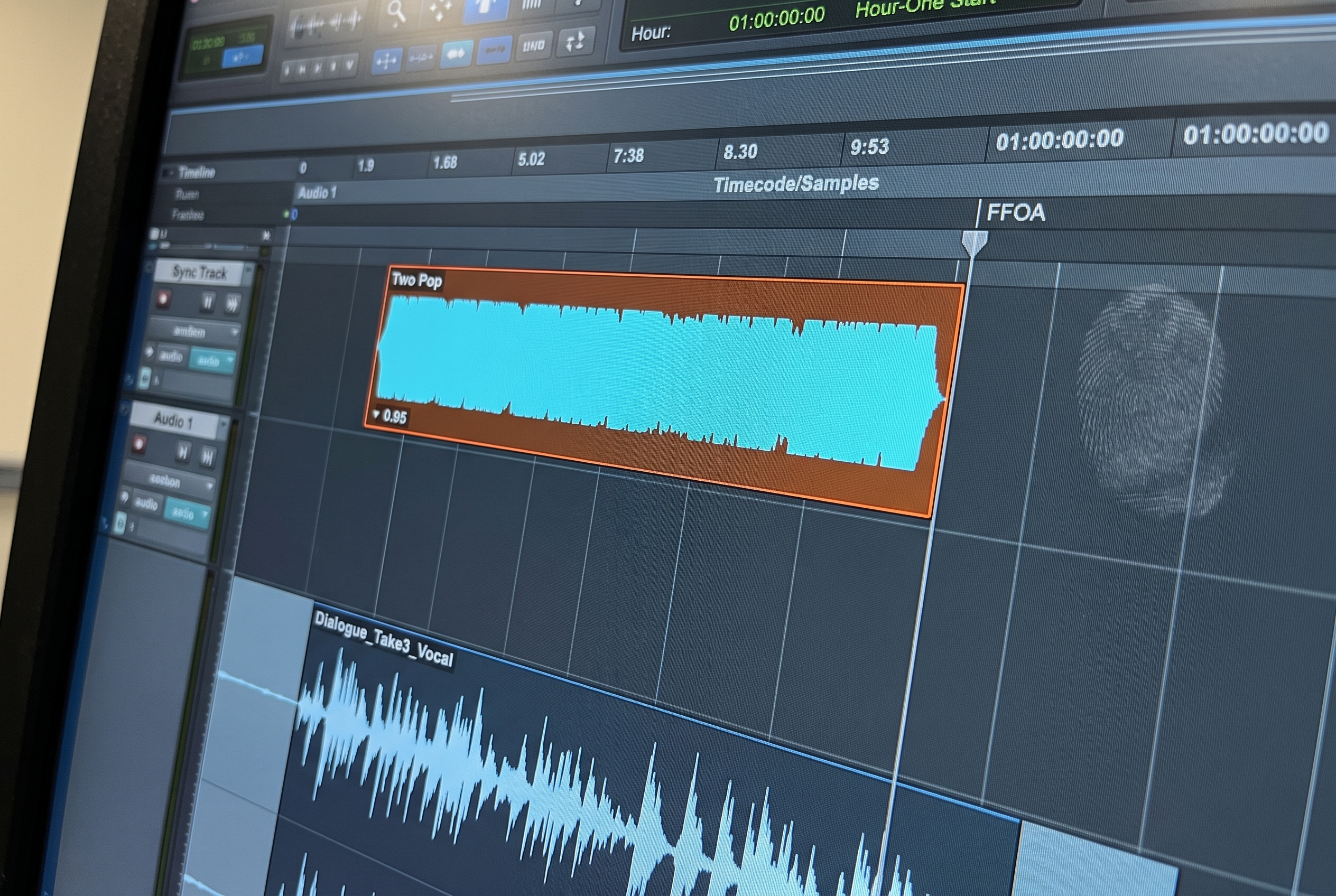
"The AAF won't import cleanly" describes three different failures that look alike from the outside and need different fixes. In the first, Pro Tools refuses the file and throws an error before anything loads. In the second, the file reads but the audio arrives offline, because Pro Tools parsed the structure and could not connect it to the media. In the third, the import reports success, every clip plays, and the session is still two to three hours from usable, because what arrived is organized around the picture editor's timeline rather than your routing template. The three have nothing in common except the result, so the first move is always to identify which one you are looking at. This guide works through all three: the errors that stop the read, the link failures that leave you with silent clips, the reorganization problems that pass the import and fail the session, a sixty-second way to tell which stage you are in, and what to confirm before export so most of them never reach you.
The Three Stages Where an AAF Import Fails
Every AAF import passes through three gates in sequence. Pro Tools first reads the file, then links the structure to the media, then hands you a session. A failure at any one of those gates reads as "the AAF won't import," even though the cause and the fix change completely from one gate to the next. Naming the stage is the difference between a two-minute fix and an afternoon spent applying the wrong one.
| Stage | What failed | What you see | Where the fix lives |
|---|---|---|---|
| 1. Read | Pro Tools cannot parse the AAF | An error dialog on import; nothing loads | The export settings inside the NLE |
| 2. Link | The structure reads, the media does not connect | Clips on the timeline, Media Offline, silence | The import media setting and the file paths |
| 3. Structure | Everything loads, the session is built for picture | A full session that plays but is unworkable | Clip-level reorganization to your template |
The order matters because the stages are gated. A file that fails Stage 1 never reaches Stage 2, so there is no point checking media paths while Pro Tools is still refusing to open the file. Work the stage you are in.
Stage 1: When Pro Tools Will Not Read the File
These are the failures where the import dialog throws an error and nothing comes in. Almost all of them originate on the export side, which means almost all of them are fixed by changing how the AAF was generated rather than by anything you do in Pro Tools.
| Error | Why it happens | How to fix it |
|---|---|---|
| "Pro Tools does not support import of AAF/OMF references to multi-channel audio files" | The NLE, usually Adobe Premiere, wrote interleaved multi-channel audio references that Pro Tools cannot read | Ask the editor to re-export with Breakout to Mono enabled in Premiere's AAF export settings, or to embed media rather than reference it. If it persists, route the sequence through an FCP XML and a bridge converter to regenerate the AAF |
| "Could not complete your request because it does not contain data that can be imported via Import Session Data." | The AAF is incomplete or corrupt, often because audio transitions were baked into the export or the render stopped partway through | Request a re-export. Remove all audio transitions before exporting, then try both the Avid and the Pro Tools export presets to see which produces a readable file |
| A newer Media Composer AAF will not open in an older Pro Tools | Version incompatibility between the Media Composer build that wrote the file and the Pro Tools version reading it | Enable Pro Tools 10/12 compatibility in Avid's Export As AAF dialog, or update Pro Tools to a build that matches the export |
| A DaVinci Resolve AAF opens with an error or missing references | Resolve has the least consistent AAF export of the major NLEs, and missing audio, broken references, and lost metadata are common | Re-export with audio and clip references confirmed in the deliver settings. If it keeps failing, export an FCP XML from Resolve and convert that to AAF with a bridge tool such as X2Pro |
The multi-channel error is the one most worth understanding, because it accounts for a large share of import-day refusals and it almost always traces back to Premiere. AAF as a format can carry multi-channel audio, but Pro Tools does not read those references, so the fix is upstream rather than in the import dialog. The Breakout to Mono setting tells Premiere to write each channel as its own mono file, which is exactly what Pro Tools expects, and the file opens. Asking for embedded media instead of referenced media solves a related case, where the AAF points at external files Pro Tools cannot resolve at read time.
The "Could not complete your request because it does not contain data that can be imported via Import Session Data" error is the corrupt-file case, and audio transitions are the usual culprit. A crossfade that lives in the NLE timeline does not always translate into the AAF, and a failed translation can take the rest of the file down with it. Stripping transitions before export, then re-exporting, resolves most of these. When it does not, the file itself is damaged, and the only fix is a fresh export from a clean version of the sequence.
The version-compatibility error is the easiest to mistake for corruption, because the file is fine and the dialog still fails. Here the export and the import simply disagree on the AAF version, and the compatibility flag in Avid's export dialog forces the older, more widely readable format. Confirm this one with picture editorial before assuming the file is broken, because a re-export with the flag set is a thirty-second fix on their end.
Stage 2: When the File Reads but the Media Will Not Link
A Stage 2 failure is quieter than a Stage 1 error and easy to misread as a successful import. The session opens, the tracks and clips are all present and correctly named, and then nothing plays. Clips show Media Offline, and the timeline is a map with no territory. The structure of the AAF read correctly; Pro Tools just cannot find the audio the structure points to.
The cause is almost always the difference between linked and copied media. When an AAF references media rather than embedding it, Pro Tools needs the original files to sit exactly where the AAF says they are. Any change between export and import breaks that connection: a renamed folder, a drive that mounted under a different letter or path, media that was delivered to one location and moved to another. The fix in the moment is to relink through Clip > Relink, point Pro Tools at the current location of the media, and let it reconnect. If an EDL came with the handoff, it can drive a relink against the original production sound when the AAF's own references are unreliable.
The fix for every future import is to stop the problem at the import dialog. In File > Import > Session Data, set Audio Media Options to Copy from Source Media rather than Link to Source Media. Copy brings every audio file into the session's Audio Files folder and makes the session self-contained, so it survives being moved between drives, rooms, or engineers. At any facility where storage paths are not guaranteed to be identical from one project to the next, Copy is the setting that removes Stage 2 from the table entirely. The small cost in disk space is trivial against the time lost to a session full of offline clips an hour before a mix.
Stage 2 also compounds in commercial work, where Pro Tools imports one AAF at a time and a campaign can arrive as ten to fifteen separate deliverables, each with its own referenced QuickTime and audio. Every one of those references is a separate chance for a path to break, which is why high-volume commercial rooms tend to standardize on copied media and a fixed delivery location rather than relinking spot by spot.
Stage 3: When the Import Succeeds but the Session Is Unusable
This is the failure that costs the most time, precisely because it does not announce itself. The import dialog reports success, every clip plays back, and the session is still hours away from workable. What arrived is the picture editor's structure: their clip names, their track layout, their idea of where audio lives. Getting from that to a session a dialogue editor or re-recording mixer can work in is the part nobody bills for and everybody absorbs.
| Symptom | Why it happens | How to fix it |
|---|---|---|
| Stereo arrives as split mono pairs (Audio 1.L / Audio 1.R) | Premiere split stereo content into dual-mono on export, so mono clips and split pairs sit on the timeline looking identical | Identify which files are true interleaved stereo, which are dual-mono, and which are split pairs, then re-interleave the pairs. Confirm stereo delivery format with the editor before the next handoff |
| No audio before or after edit points | Handles were not enabled in the NLE export, so each clip ends exactly at its cut | Request a re-export with handles enabled, two seconds minimum and ten ideal, so there is room to work edits and crossfades |
| Audio does not line up with picture | Timecode mismatch between the AAF and the session, or mixed timecode conventions inside a batch | Verify the session start timecode and frame rate (23.976, 24, 25, 29.97, 30), and confirm the convention with picture editorial. A sample-rate mismatch against the 48 kHz project rate produces a similar drift, so check that too |
| Every track named Audio 1, Audio 2, Audio 3 | The picture editor did not name tracks, so the names reflect the NLE default rather than content | Expected. Sort content at the clip level, not the track level, then rename once you understand what each region holds |
| Dialogue, music, and effects mixed across the same tracks | The picture editor's layout follows their edit, not the dialogue / music / SFX split audio post needs | Re-sort at the clip level into dialogue, music, and effects, then route each to the matching bus in your template |
| Clip metadata or scene and take absent | Production-sound metadata and iXML are not carried through the AAF by every NLE | Link the original BWF files alongside the AAF to recover scene, take, and recordist notes |
The split-mono case deserves the most attention, because it is the most predictable and the most avoidable of these. When Premiere exports stereo, it frequently delivers Audio 1 as mono alongside Audio 1.L and Audio 1.R, so a single named track holds a checkerboard of mono and split-stereo content that looks uniform until you audition each clip. The work of separating true interleaved stereo from dual-mono, then re-interleaving the genuine pairs, is mechanical and it scales badly across a long-form project. The export-side detail, including the Premiere settings that prevent it, is in the guide on creating a Pro Tools-friendly AAF from Adobe Premiere.
The wider point is the one the import dialog hides: an AAF that imports without an error is not the same as a session ready for creative work. The layout, naming, routing, and stereo structure still belong to the picture editor until they are rebuilt to your template, and that rebuild is the work that stands between import and mix. The full path from a clean import to a mix-ready session is covered end to end in the AAF workflow guide.
How to Tell Which Stage You Are In: A Sixty-Second Triage
The stage is usually obvious within the first minute of opening the file, and confirming it before you start fixing anything saves the time wasted on a fix aimed at the wrong gate.
- Did Pro Tools throw an error dialog and refuse to load? That is Stage 1. Read the error text, match it to the table above, and the fix is a re-export with the right setting. Nothing in your session needs changing.
- Did the session load, but clips show Media Offline and play silence? That is Stage 2. The structure is fine, so do not re-export. Relink the media, and switch future imports to Copy from Source Media.
- Does everything load and play, but the tracks are unnamed, the content is mixed across tracks, and nothing matches your routing? That is Stage 3. There is nothing to fix at the file level. The work is reorganizing the session to your template.
A single handoff can fail at more than one stage in turn. A file can clear Stage 1 after a re-export, then reveal a Stage 2 offline-media problem, then once relinked turn out to be a Stage 3 reorganization job. Working them in order keeps each fix aimed at the right cause.
Before Export: How to Stop Most of These at the Source
The majority of these failures are decided before the file reaches you, which means a short conversation with picture editorial removes them. Six things are worth confirming on every handoff:
- Which NLE generated the file. Avid Media Composer is the most reliable AAF exporter, Premiere carries the dual-mono risk, and DaVinci Resolve is the least consistent. Knowing the source tells you which problems to expect.
- Handles. Confirm they are enabled, with two seconds as a minimum and ten as the working ideal.
- Stereo delivery. Ask for Breakout to Mono from Premiere, or confirmed interleaved stereo, rather than discovering split pairs after import.
- Timecode convention. Confirm the start timecode and which convention is in use, especially across a batch of commercial deliverables where two-pop, first frame of action, and slate can be mixed.
- Sample rate and frame rate. Confirm both match the session, since a mismatch on either produces drift that is easy to misattribute.
The mechanics of the import itself, and the settings inside the import dialog that matter most once the file is clean, are covered step by step in the guide to importing an AAF into Pro Tools.
Where Automation Removes the Failure Points
Several of these checks are work a tool can run faster and more consistently than a person doing them by hand at the start of every session, and fPost is built to run them across all three stages. At Stage 1, the free AAF Checker validates a file before you import it, flagging corrupt files, missing or unreadable media, and timecode or sample-rate problems, before a session has been built around it. At Stage 2, fPost's import settings can copy or consolidate the media into the Pro Tools session folder instead of linking to it, and it can save a backup copy of the original AAF alongside the organized session, so the reference for what editorial sent stays intact even after prep has run. At Stage 3, its AI-R content detection classifies incoming audio as dialogue, music, or SFX and places the clips against your facility template, while combining the L/R mono pairs a Premiere export leaves behind into stereo tracks for the categories where you enable it, so the split-stereo cleanup is handled rather than audited clip by clip. Timecode, automation, and import session data stay intact through the process.
None of that changes the diagnosis above; it changes how long the fix takes, turning the two to three hours of prep that follow a clean import into minutes. fPost runs on macOS 13 or later with Pro Tools 2024.3 or later, with a free seven-day trial and a demo available on request.
Frequently Asked Questions
Why does Pro Tools import the AAF but show all the audio offline?
The AAF referenced its media rather than embedding it, and the files have moved or been renamed since export, so Pro Tools can read the structure but cannot find the audio. Relink through Clip > Relink and point Pro Tools at the current media location. To prevent it, import with Audio Media Options set to Copy from Source Media so the session carries its own audio.
Why does Pro Tools say it cannot import multi-channel audio files?
The AAF, usually from Premiere, contains interleaved multi-channel audio references that Pro Tools does not read. Ask the editor to re-export with Breakout to Mono enabled so each channel arrives as its own mono file, or to embed the media. The file then opens normally.
Can Pro Tools import multiple AAFs at once?
Not natively. Pro Tools imports one AAF at a time, which is the bottleneck in commercial work where ten to fifteen deliverables arrive together, each needing to sit at a deliberate timeline position rather than being loaded in sequence. Placing them correctly takes either careful manual work or a tool that handles the offsets.
Should I use AAF or OMF for Pro Tools?
AAF. OMF loses volume automation and track names on export, which adds cleanup before you have started, so modern audio post standardizes on AAF and keeps OMF only for legacy files that arrive that way.
Does a clean import mean the session is ready to mix?
No. A clean import means Pro Tools could read the file and link its media. The track layout, naming, routing, and stereo structure still belong to the picture editor's timeline until they are reorganized to your template, and that reorganization is the work that stands between import and mix.